
APEX Film Lab / Guides
What Is a Cineon LOG Film Scan?
A LOG film scan gives you a starting point for grading, rather than a finished photographic look. At APEX, LOG is a Cineon-based profile for photographers who want to make the colour and contrast decisions themselves.
What Cineon LOG actually is
Cineon comes from a professional film digitisation workflow. Its logarithmic encoding relates image values to film density, rather than directly displaying them as finished screen brightness. The original Cineon .cin format used 10-bit logarithmic colour data. A Cineon-based profile and a .cin file are therefore different things: APEX supplies scans as TIFF files, not Cineon .cin files. Autodesk’s Cineon documentation explains that distinction.
Why a LOG scan looks flat
The scan is intended to be interpreted and graded before viewing as a final image. Without the appropriate treatment, contrast and saturation can appear low. That flat appearance is a working starting point, not proof that the film lacks contrast or that every highlight is recoverable.
The encoding matters. Different logarithmic mappings can produce different results, so a camera LOG preset is not automatically suitable for a film scan. Kodak’s scanning recommendations describe why the mapping must be communicated correctly in post-production.
LOG versus a corrected scan
A corrected scan includes more of the lab’s choices about tonal balance, colour and contrast. A LOG scan leaves more of those finishing decisions to you. Either can be useful; the right choice depends on whether you want to grade every image or start closer to a finished photograph.
Why photographers might want LOG
- You enjoy grading and want to build a consistent look across a series.
- You want to control the balance between shadows, midtones and highlights.
- You already have a colour-managed editing workflow and prefer a less finished starting point.
What LOG does not mean
LOG is not camera RAW, extra resolution or an automatic restoration of lost detail. It cannot recover information absent from the negative or clipped during capture. A flat preview alone also does not establish the scanner’s dynamic range. Bit depth, scanning quality and the profile’s tonal mapping are separate considerations.
How to edit or grade a LOG film scan
- Keep the original scan and work on a copy. Use a 16-bit editing workflow when working with a 16-bit TIFF.
- Confirm the input encoding and colour-space instructions for the delivered file. If unsure, ask APEX before applying a transform.
- Use a suitable input/display transform where your software supports it. Do not assume a LUT for S-Log or another camera format matches Cineon-based film scans.
- Adjust exposure, colour balance and contrast while checking for clipped channels. Then refine saturation and the look of the image.
- Apply output sharpening at the final size. Keep your editable master and export a separate file for sharing or printing.
You can also shape the image with curves in a photo editor. A pleasing manual grade is a creative result; it is not necessarily a calibrated conversion of the scan’s encoding.
LOG, CINE and CLASSIC: the same sample frame
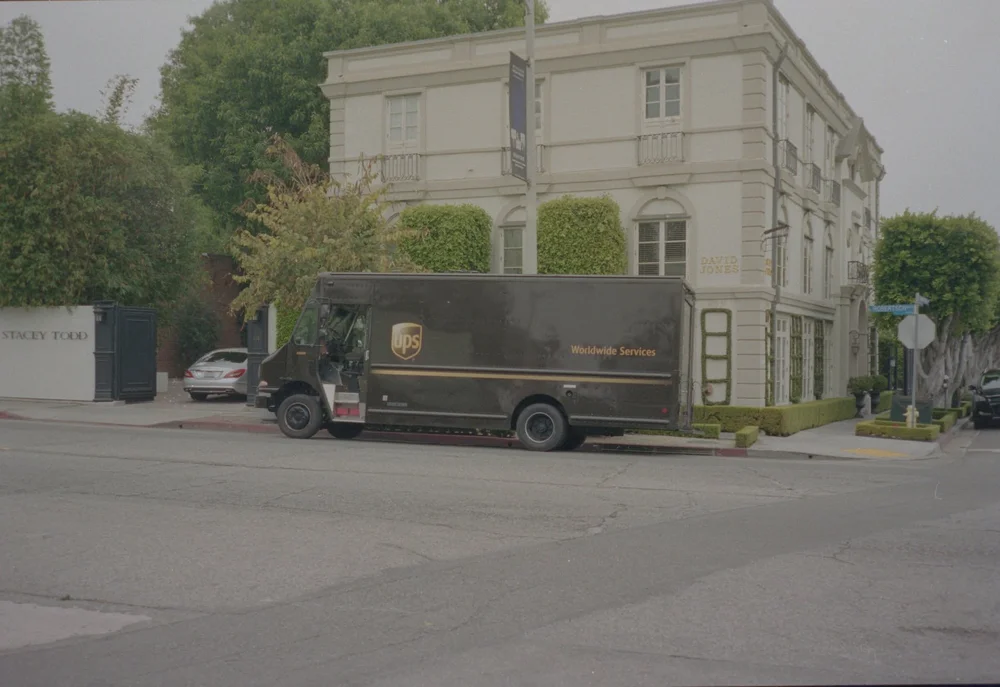
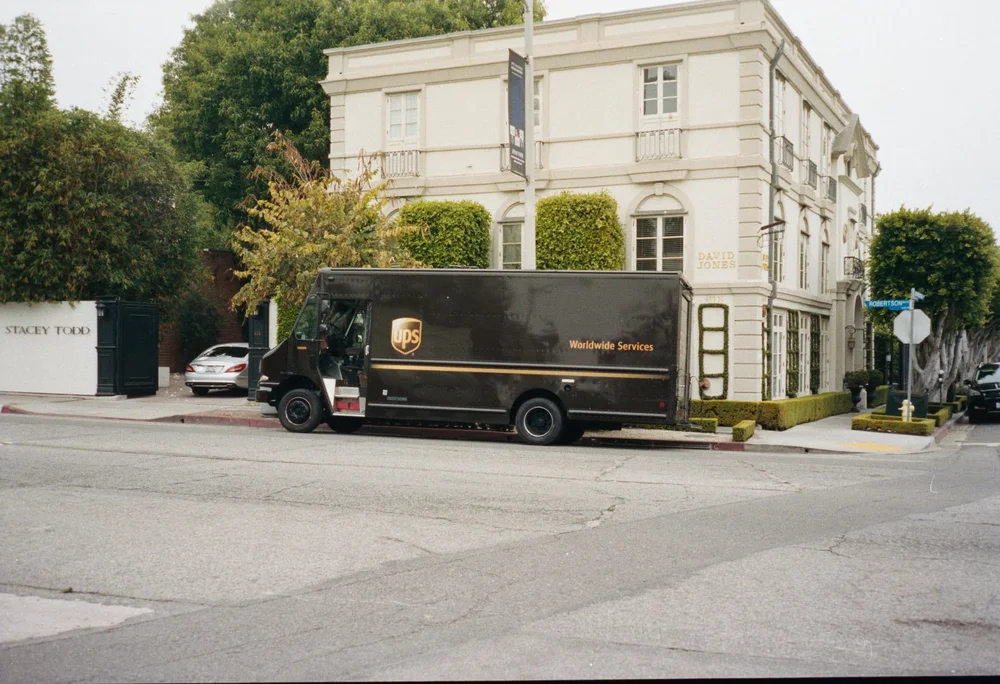
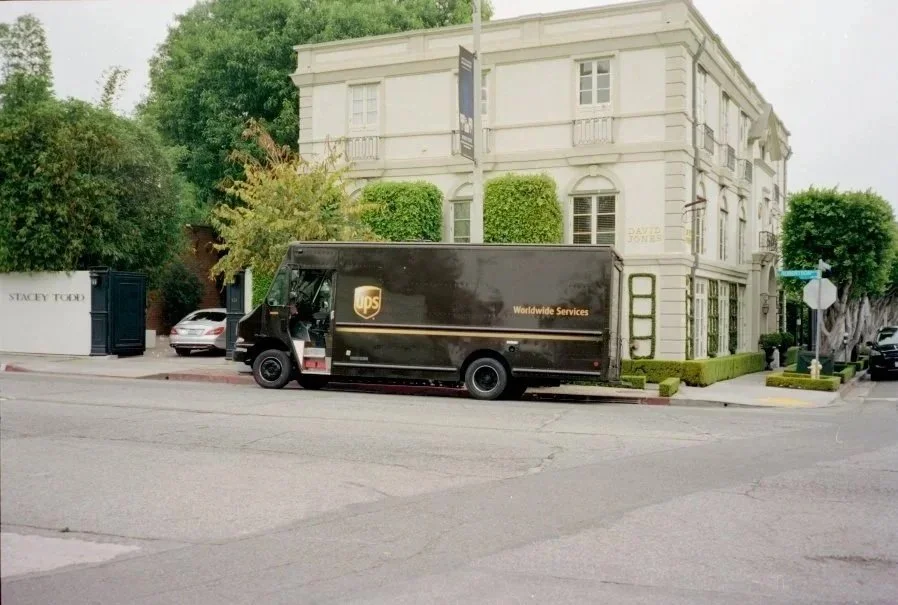
The existing APEX sample frame shown in all three profiles. Web previews show the appearance of each profile; they do not demonstrate the full bit depth of the delivered scan.
LOG gives you the most open starting point for grading. CINE adds a cinematic interpretation. CLASSIC aims for a familiar photographic finish with less editing. Compare LOG, CINE and CLASSIC in detail →
Explore the scanning workflow
Learn about the Scannatron X1 scanning system, or read our guides to 16-bit TIFF versus JPEG and film scan resolution.
For new film, choose Develop + Scan. For negatives that have already been processed, choose Scan Only.